Showing posts with label Visual Studio. Show all posts

Thursday, September 12, 2013

Visual studio 2012 Blue Theme

Dear Community, I believe lot of the die hard fan of Microsoft development platform  wondered why visual studio 2012 got rid of the blue theme, in my personal opinion i really liked it, then while working and viewing videos in channel 9  I discovered that we can have different different colors theme in visual studio, and that’s  been there from the beginning.

Man I am stupid, should have figured it out that they have some kind of plan for that. Any way the easies way to get this blue theme going again in visual studio is to use extension.

How to get the blue theme?

Go to visual studio 2012’s extension manager and then search for “Color” in online category.

image

You will find couple of interesting extortions, Download the “Visual Studio 2012 Color Theme Editor”

image

The download and install will begin instantaneously, after that the Visual studio will be required to restart.

After restart you will get option like the below where you can choose your color theme. Choose the right one. In my case I have chosen “Blue”.

image

You can also customized the theme and create your own theme, but that is a whole other story. Until next time. Happy coding.

Friday, August 2, 2013

Team foundation server windows explorer extension

We all used svn that’s for sure for personal use or perhaps company policy to use it doesn't matter, in source control race TFS is getting behind. At lease i felt it, but some recent improvements now taking this back bench product to front bench.

For instance we can have git like behavior in tfs if we want, cool right?. But today I wish to share a different type of tool that can ease the tfs experience a little bit better, in fact its a windows explorer extension, named “Microsoft Visual Studio Team Foundation Server 2012 Power Tools”

You guys can download it from “http://visualstudiogallery.msdn.microsoft.com/b1ef7eb2-e084-4cb8-9bc7-06c3bad9148f”

I have used it and its kind of can give you a feeling like tortoise. It has overlay icons just like svn.

image

Now some critic, the extension has relatively slow in performance, at least in my system. It doesn't have branching or switching stuff like other source control extensions, its primitive but at least now we have an extension.

I got excided to realize that now i can add documents folders and other stuff in tfs without need to open visual studio. so its cool and if we all start using it hopefully more feature will be available in future. 

Thursday, July 4, 2013

Thousands of warning! in visual studio 2012? Why?

So what happen is, I had my XML documentation file checkbox in build tab of project was checked. And I had few service references in my project.

As you can guess all of the service ref has around more than 2000 methods, since this checkbox was checked all the public methods of service proxy class was giving a warning about summery of the function.

image

It was frustrating to see that amount of warning in my project, Then unchecked the checkbox and wallah all the warning are gone.

Inner peace is on,,,,

Thursday, January 3, 2013

WCF Service Optimization: An interesting technique to split your *.svc.cs file to have more manageable WCF service

Introduction

WCF (Windows communication foundation) is the service layer foundation and the base of SOA in Microsoft dot net, what will happen when you have a huge WCF service consisting of 5000 operation contract. This is not unreal at all, if you design a service bus for a large intranet application, where 1000 employee using your application and doing day to day operation and your WCF service hits per second is about 2000. You can do so many thing to optimize it, first of all you can cluster the service and then apply load balance. So horizontal scaling is a solution.

Now if you are given a task to optimize the operation and each time you need to look at the service you have to find it in a large class where you have about 5000 operation contract. How developers will maintain this huge code base?

Fortunately we have few solutions to that problem

Today we are going to see 1st of many solution

split your *.svc.cs file

This does not help in optimization of the service rather managing the file and the codebase. First of all I would split the svc file in to several pieces. Each will contain in about 100 methods, still we would have 20 files for the svc file, its kind of sounds different but, would help managing 2000 methods, each file will contain domain specific methods for the service.

How we do it?

We will add class with almost same name as the service, for instance if we have a WCF service named “myservice.svc” then the code behind file is  “myservice.svc.cs”. Off Course its not necessary to have svc.cs file with the wcf service we can have only the declaration.

Below a code example is given,This is how a real world service which is out of refactoring and maintain for a while looks like.

image

Figure: Log Class of 2000 method

In above screenshot If you carefully look at the scrollbar of the method dropdown of the visual studio, you will have an idea how much its doing.

So now we need to optimize this in perspective of code management. As we already discussed the technique. we will split this in to several pieces, luckily we have a partial class concept in c#, so we would split this in to several pieces according to class responsibility domain.

Naming convention for the partial class. “myservice.[responsibilityDomain].svc.cs” that’s the filename of the class. In practical case I have named on of my partial class as “ReliantDataConnect.CandidateOffer.svc.cs” I have moved all the methods related to CandidateOffer in this file.

Now Lets say we have added another partial class file name “ReliantDataConnect.Resource.svc.cs” using the following wizard window.

image

Figure: Add a new class

And after moving the related methods in the partial class the partial class may look like below screen shot.

image

Now problem is the partial class will be visible in solution explorer as a isolated file rather part of the WCF Service. Below how it looks like after adding the file.

image

Now if we can add this file as a dependent file of the ReliantDataConnect.svc file this will save us form watching isolated file, and make a combined file. Here is how we do it.

Make a file dependent on another file in visual studio

First of all we have to open the project file in note pad or text pad or note pad ++ which ever you like. Then find the file name that we added “ReliantDataConnect.Resource.svc.cs”, finally add DependentUpon Child node and specify the file name in our case its “RelaintDataConnect.svc” Now saved the file. Close it. If visual studio is open it should already warn you that file is been modified outside and reload is necessary. Reload to proceed.

image

After reload you will see that the file is now part of svc file.

image

Cool right?. Well for now you can go and browse other blog, I will get busy with creating 20 more class file for this project. Until next time.

Masudur Rahman is out.

Wednesday, September 14, 2011

Event Aggregator in Prism 4.0 with MEF

Today I am going to share a simple trick about Event Aggregator, I was working in one of my project and I was trying to use event aggregator. I was stopped by a show stopper exception, and couldn’t find out what is going on. here is the expectation that I had.

image

Looks familiar? I bet some of you had encounter it. well the solution is pretty easy while subscribing an event you got to also set your thread option and off course a true value to keep reference alive parameter of the subscribe method.

public InboxViewModel(IEventAggregator eventAggregator)
{
_eventAggregator = eventAggregator;
var myDemoEvent = _eventAggregator.GetEvent<MyDemoEvent>();
if (myDemoEvent != null)
myDemoEvent.Subscribe(OnEvent,ThreadOption.UIThread,true);
}
private void OnEvent(MyCustomObject obj)
{
//do some thing over here
}


I already assume that you know about how to make a custom event for Event aggregator. If not here is a code sample. The main catch is that it have to be inherited from CompositePresentationEvent<>. The code sample is given bellow.

 public class MyDemoEvent:CompositePresentationEvent<MyCustomObject>
{
//here goes thing about your cutom event
}

public class MyCustomObject
{
//here goes you custom event payload stuff
}


Till next post happy programming.

Thursday, May 6, 2010

Data compare in visual studio 2010

Visual studio 2010 ultimate has many interesting and life saving feature, but let’s face it we can not put together in a single blog, rather today I am going to show you an interesting feature regarding data synchronization. Yes I am talking about “Data Compare”. In one of my blog I have put down few information about Schema comparison,

image

You can lunch the above window from Data Menu from top menu, after selecting both source database and target database just click on next, in this next screen you can select the database object types “Table” and “View”, select your desired object and then click on finish. The process would take few seconds to finish.

After the process is finished you would be presented with a screen like the bellow window.

image

After that you can select the command that you would like to perform from quick toolbar of visual studio 2010.

image

You can choose to sync directly, by pressing the “write updates” command or perhaps “export to editor” to examine and execute the generated query.

Hope this helps to some one. Until next time. Happy programming.

Thursday, January 7, 2010

Using the Build event of visual studio 2008

Background

Some times we need to execute some custom task just before we build our solution or project, I have no idea how others IDE do that, but recently we have gathered some experience about Visual Studio 2008, and doing these kind of task became pretty easy.

In one of our project we had to use a custom third-party component, the component is easy to incorporate in the project, but we have a problem, the component uses a d-com component which can not be added in the project, but if we keep the com component in bin directory the program runs okay. so our challenge is to copy the component before build in the bin directory of output project from the other projects bin.

Visual Studio 2008 Build Events

In Visual studio 2008 we have two build event, prebuilt event command and post build event command, post build event can be controlled with various parameters for example, post build event will raise when a successful build is happened.

image 

Figure: Visual Studio 2008 Build tab under Project properties

In our particular case we solved our problem in using pre-build event, now let us discuss a little bit more about pre-built event, you can use almost any kind of command in command line, provided that the commands don't require special permissions for executions.

In our case we have used "xcopy" command to solved the problem, there are lot of macro for execution. we used target directory as output macro, and source directory as solution macro, since its a simple problem we set the relative path of the DLL from solution path. worked okay, when we published the project we found that in publish version also contains the DLL, job done with very good time and in a good way.

Post build is almost similar like pre-build except it has some extra control, user can specify when to raise it, in the above screen shot you can see that there is a large combo at the bottom.

Here is a small example command in the for pre-build command.

If we want to copy all output files of a project to a deployment folder after post build event we have to put down the following command in the post build command line,

""xcopy "$(TargetDir)*.*" "c:\output" /S /I /F <NUL:""

Bellow i have put down a pre-build event command line input window with macro.

image

well that's all for now, please visit the references for more information, best of luck and happy coding.


References

  1. http://msdn.microsoft.com/en-us/library/42x5kfw4.aspx
  2. http://geekswithblogs.net/dchestnutt/archive/2006/05/30/80113.aspx
  3. http://dotnetperls.com/post-pre-build-macros
  4. http://skysanders.net/subtext/archive/2009/09/05/visual-studio-2008-build-event-xcopy-bug.aspx

Thursday, September 3, 2009

How to work in really local repository with svn.

Two things, First “I don’t want to install a source control repository”, second, “I want the source control in my local machine” finally “I want the facility to check in, check out and keep source history”, That’s actually three things, well what come in my mind is the Tortoise SVN facility.

Create A local repository

Here is how we can do the local repository, first install TortoiseSVN, its totally free so no need to worry about any licensing issue. After successful installation, select any folder from your file system, and right click on that repository. Now from TortoiseSVN menu select “Create repository here”.

image

It is going to take only a second to finish the process, Walla your local repository is created. And you will get a confirmation  like the bello window. After that you can choose to created default folder structure. Next step is to add a solution to this local repo.

image

Adding source in source control

Open your desired solution in your visual studio ide. right click on solution explorer solution file, and select Add solution to Source control. Since I have a VS plugin for svn I will get window like bello screen. It’s recommended that you add a visual studio svn plugin like Visual SVN or Ankh SVN in your development machine.

image

Click on to finish the process and you will get log message entry window.

image

Type your comment and then click ok, that’s it you have a local repository up and working for you.

Check in and checkout

Bellow I have provided the pending checking window screenshot, after adding the project you might want to add every thing un-committed to the source control.

image

History

Since you have your source control you can now check in and checkout any file, and also keep history and ability to revert the changes if anything goes wrong.

image

More over you can track history to find out any changes that is done in the source control.

image

Its fun and no worry to loose your code anymore. But I would recommend that you use a svn server, because your machine could crash, but server will have backup facility.

Until next time, me signing out cya.

Thursday, August 6, 2009

AnkhSVN : a free and full integrated SVN tool for VS IDE.

Subversion integration with VS IDE is one of the necessary things as far as Integrated development is concern. A lot of develop still do folder based file system Update, Merge and Commit while working with code based which has a source control in Subversion.

Nowadays, since the we all want the luxury of having everything accessible through visual studio ide, why not also svn. There are two important tool that come to my mind right way for svn integration.

  • Visual SVN

  • AnkhSVN

No doubt that Visual SVN is a wonderful tool that have full integrated feature with visual studio, but main problem with it is that its not free and a commercial tool. If we use express edition of visual studio and want svn integration we might not want to pay for it.

There AnkhSVN wins, its totally free, for distribution and use. The tool is can be download from http://ankhsvn.open.collab.net/. Ankh SVN is fully integrated and free tool for svn support in visual studio.

Features are given bellow and taken from the AnkhSVN Site.

Features

Pending Changes window

  • One window to handle the normal workflow.
  • Real-time overview of all project changes.
  • Easy access to most Subversion commands.

Merge Tracking

  • Easy-to-use wizard simplifies merging.
  • Wizard is merge-tracking aware.
  • Intuitive integrated conflict resolution
  • Supports all merge scenarios supported by Subversion 1.5/1.6
  • Works with Subversion 1.5+ servers, and pre-1.5 servers.

Optimized workflow

  • Don't leave your IDE for most common operations.
  • Immediately view the source control status of all files in your project/solution.
  • View working copy information such as last committed author, last committed date and the repository URL.
  • Import new solutions automatically.
  • Get support for all Subversion transfer protocols.

Pluggable diff/merge

  • Plug in your diff/merge tool of choice
  • Smart command line templates for the most common merge tools.

Repository Explorer

  • Easily browse any Subversion repository.
  • View extended information about remote files and directories in the Visual Studio Properties window.

License

  • AnkhSVN 2.1 is licensed under the open source Apache 2.0 license.

After installation we can use and when we add the our solution to source control the solution explorer is pretty much looks like the following screen shot.

image

Bellow the pending checking window for AnkhSVN is given.

image

Hope you will like this tool and use open source solution. Until next time cya.

Sunday, June 22, 2008

Improved Resource file project template in vs2008

Visual Studio 2008 resource file project template is now more improved! and more usable.It has very user friendly and easy to edit environment, providing the user with the ease of managing resource better than ever. I have been using resource file since Visual Studio 2003. Previously I got to write code and use resource manager to pull the resources from the embedded resource file. And there are maintenance hassles to load a resource only once. We did lot of engineering previously to resolve the easy management and developer friendly architecture for resource accessibility. Now resource management with Visual Studio 2008 resource file template is a child's job.


What can be added in resource file


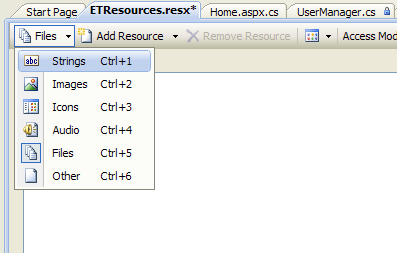
Now we can add different type of resource file just with few mouse click, isn't it great. Okay, here is the list of file type you can add as a resource file in resource file template.

  • String
  • Image
  • Icon
  • Audio
  • Files
  • Other(Virtually every thing!)


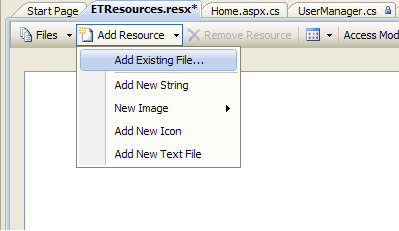
So there is lot to work with resource file. The magic is you can add these files with drag and drop from any location. Adding resources is that much easy. Still you have some traditional way of adding resource, you can add new resource and also add existing file from the disk. for this we have to click on "Add Recourse" button in Resource Management Window.


Access Modifier


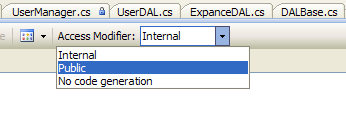
Resource file and its type has few access modifier just like our class access modifier. If you set access modifier as "No code generation"  no designer generated code will be generated! ... this means now we don't have to write any manager class to manage and pull the resources from embedded resource file if we choose access modifier other than "No code generation". Here are the options we have in access modifier.

  • Internal
  • Public
  • No code generation


Visual Studio 2008 will automatically write a class and code for you so what you can access your files right way. This is one of the major improvement in resource file template of Visual Studio 2008. If you set access modifier as "Internal" your resource can only be accessed from the container project of the resource file, that implies what you can not access resources, that are marked as internal, from out side the project. So of course setting the access modifier to "Public" will made our resource accessible from any where.


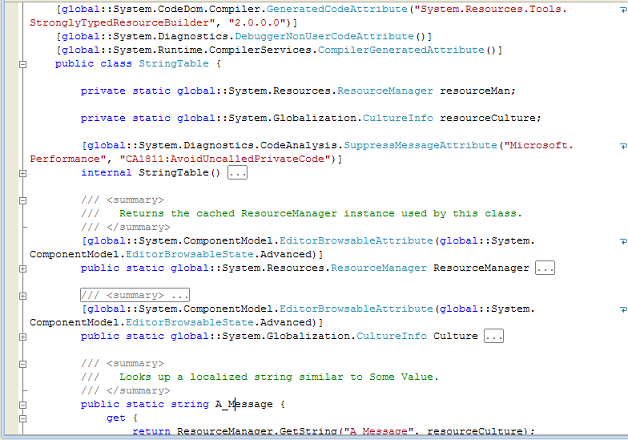
I have used string file in in couple of my projects and did all custom codes to manage those. Now I use resource file right way because its so easy. Here is a view what designer generates for you.


Resource File "IntelliSense"


Since we have a designer generated code so we can use the class right way in our code and also enjoy the facility of intellisence. A very beautiful feature is that if we will get the object as typed object, means if we added string type it will give use string object, and if we have added image in our resource file it will return a Image Type object. so its pretty smart and we can bind it to a Image Control to display it.


Well another thing that I want to share, that, its has different type of view in resource manager window. we can switch to thumb nail mode if we are using image and easily locate which image we are looking for. Of Course we can also filter our resource using resource type selector.

NOTE: Each Resource is added against a key so. Key must be unique.

Friday, December 7, 2007

Visual studio as database designer

Visual studio have now supports working with data extensively. I mean the feature was there from the beginning but how the UI and interaction is perfected. For instance lets say we don’t have any sql server 2000 database, or even no MSDE database. Not even the new express database that came with the default installation. Still we have the “filename.mdf” the file based SQL Express database support. and to work with that we only need visual studio to SQL Server management studio is necessary. All the purpose of normal developer work can be achieved by visual studio.

For instance create a mdf database. Then work on creating tables, views, store procedures, functions, and what not. Bellow I have provided a screen shot, that is been lunched right after you create a mdf file based database.

image

Visual also have some rich table creating and manipulate facilities. When we create a mdf file based db, it automatically creates a data connection for us in server explorer. Note that we can also connect to SQL server express, sql server, oracle , odbc and any database with a supported provider.

image

One key improvement is that not only we can create and modify any kind of database object in visual studio but also we can attach sql debugger to step in to store procedure to to see what is happening inside the query.

image

There are many more database related feature in visual studio and looks like its moving towards perfection as a IDE. But I have a concern though, when the IDE will be perfect obviously It would be performance issue, the big guys from MS should look after it.

Friday, November 2, 2007

Some common code Snippets in visual studio (prop,ctor,try, etc.)

Probably every one knows about it but still want to share a simple feature that I though really good is code snippet. it’s a help tool to generate small portion of code using key word then tab.

image

to use this just type “ctor” in your class and then press tab, this will automatically generate code for you. bellow some common snippet key word is given.

  • ctor (constructor)
  • prop (property)
  • propg (read only property)
  • using (using block)
  • while,do (for loop block)
  • try, tryf (for try catch and try finally block)

There are more, you can find all of them in intelligence context menu. Lets finish this post by another information worth knowing is that the “Surround With” and “Insert Snippet” content menu item. You can also use this to warp your codes with region conditional pre-compiler switch and many more.

image

Please visit the resource bellow on MSDN to know more about how to use custom snippet. It has full resource how to customize the snippet feature and you can create and distribute your own code snippet.

http://msdn.microsoft.com/en-us/library/ms165392%28v=vs.80%29.aspx

Friday, October 5, 2007

Refactoring in visual studio

Why refactor? you know better why, because we have written crappy codes and its making our life hell, and killing lots of precious development hours. we could write thousands of line just to describe why we need refactoring, but lets not go in that debate.

We are here to learn refactoring features provided by visual studio to clean up our codes. The refactoring techniques are given bellow.

  • Rename
  • Extract Method
  • Encapsulate Field
  • Extract interface
  • Promote Local Variable to Parameter
  • Remove parameters
  • Reorder parameters

Bellow a screen shot from visual studio is given

image

All of the refactoring have shortcut associated with it and all of them are two key shortcut. Starts with CTRL+R, and followed by CTRL+”ANY Main Key”. for instance R is for Rename. Bellow example of rename refactor is given.

Rename Refactor

Step 1: Select the class, property, variable, field, or method. hit CTRL+R followed by CTRL+R, a window will popup and then put required name then click ok. if preview is been selected, it would popup another window.

image

Step 2: A preview will be shown what the ide will going to do with the name provided. Click apply to proceed.

image

This is just a tip of the iceberg. There are huge possibilities with this new features, how we use it and whether we choose to use it or not totally depends on us. And I highly recommend to use this refactor feature more and more.

Friday, September 7, 2007

Logical grouping of projects using solution folders.

Its unlikely that any of our professional life projects have only one project in our solution, and likely that in every of our project we would have huge number of projects in it. It might get hectic for us to keep track of the projects and find it in a glance, moreover it not healthy for the project also.

Visual studio have a nice feature called “Solution Folder” which is a logical folder structure and does not have any physical existence in user’s disk. Bellow I have given a screen shot of one of my personal project, where I have categorized three part of my solution using solutions explorer.

  • Architecture
  • Infrastructure
  • UI

image

In architecture I kept Business logic, data access layer and service layer. In infrastructure I kept helpers and business objects project and finally in UI solution folder I kept the web ui and window ui project. There could be more folder like this for instance “deployment” where all installer projects will go.

If solution folder had physical existence it would have been more helpful for us. But whatever we have serves our purpose.

Thursday, July 5, 2007

How to Add Web Application Project in Visual Studio 2005.

The new version of visual studio does not content the web application project template, which was available in visual studio 2003. The way you can create web project is to create a new web site. I have no idea why its like that but the web application project was cooler than web site template.

Anyway may be Microsoft wanted to try new things. But there is always a work around for the problems, you can download the web application project template from  here. Installing this project template would give you web application project template for both c# and vb.net.

Update 1:

We found a very cool web site about Visual studio web application project template and lots of help with it. Thanks to Scott Gu. He have provided a awesome site with lots of tutorials.

image

Please visit Visual Studio 2005 Web Application Project for more information.

Update 2:

Never mind the old stuff web project is now available with the latest service pack. Life would be lot easier if they had provided it earlier.

Cheers.

Wednesday, April 11, 2007

VS 2005 Windows Work Flow ToolBox Section...

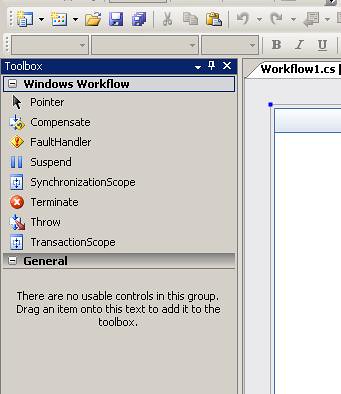
Hi Recently i had to work with Windows workflow foundation for some conceptual demo or proof of concept demo. During development time i faced a strange problem. some of the windows workflow tools are not showing in tool box.


BeforeReset


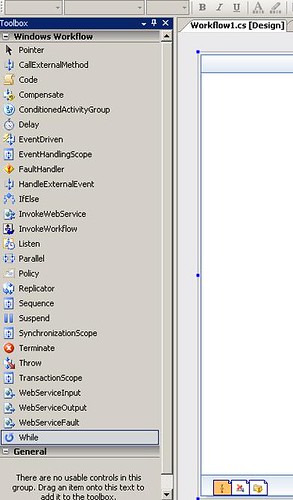
I try to reinstall the workflow extention for Vs2005 but the problem remain. if you see care fully i can not drag and drop a code activity from the tool box. That was a little but disturbing … then i reset the tool box. and every thing got back on line again. i just right click on the tool box a popup menu come up which has a reset menu item.


afterReset...


Some time in some other extention of vs this thing can happen. Dont forget to reset your tool window.

Thursday, January 25, 2007

VS templates not working? Easy to get things back.

Recently I had to work with window SharePoint Service 3.0 and its development. I download the visual studio 2005 project templates for SharePoint development. I downloaded the project msi from Microsoft download site.

http://download.microsoft.com/download/e/8/a/e8aa8476-5af6-4f38-aed2-0247a99d2bc6/VSeWSS.msi

Installed in my local computer… but when I opened the IDE2005 project templates are not there…..

I got confused… and try reinstall the msi… but noting happed… I went to google and found few people is also suffering from this problem… the problem is my vs2005 is installed in different drive other that “c:\” and the installed temples are in default “c:\”… and then I moved my template in the drive where the IDE2005 is installed….

Location of the project templates is [your dive letter]:\Program Files\Microsoft Visual Studio 8\Common7\IDE…

There were two directories one if project template and other is item template… last thing that I did is to make ide identity the project templates….

For this I had to just a command in vs2005 comma prompt..

devenv /installvstemplates

I found help from the following forum… please go there for more detailed discussion…

http://geekswithblogs.net/ehammersley/archive/2005/11/08/59451.aspx

Hope this will help someone someday….